One editor for every Study Doc you make
Every upload becomes a Study Doc: a formatted, themeable document with AI writing tools, proofing and Deep Recall built in, and the flashcards and MCQs made from it one click away.
The Study Doc editor
Every tool for revision, in one ribbon
Open any Study Doc from your Study Docs home or the Vault, and the same ribbon of tools is there, whatever produced the document.
Pages or Continuous
Lay your notes out as separate A4 pages, or let them scroll as one long document.
Outline and Original Doc
Jump between headings in the Overview panel, or open your original upload side by side to check anything against the source.
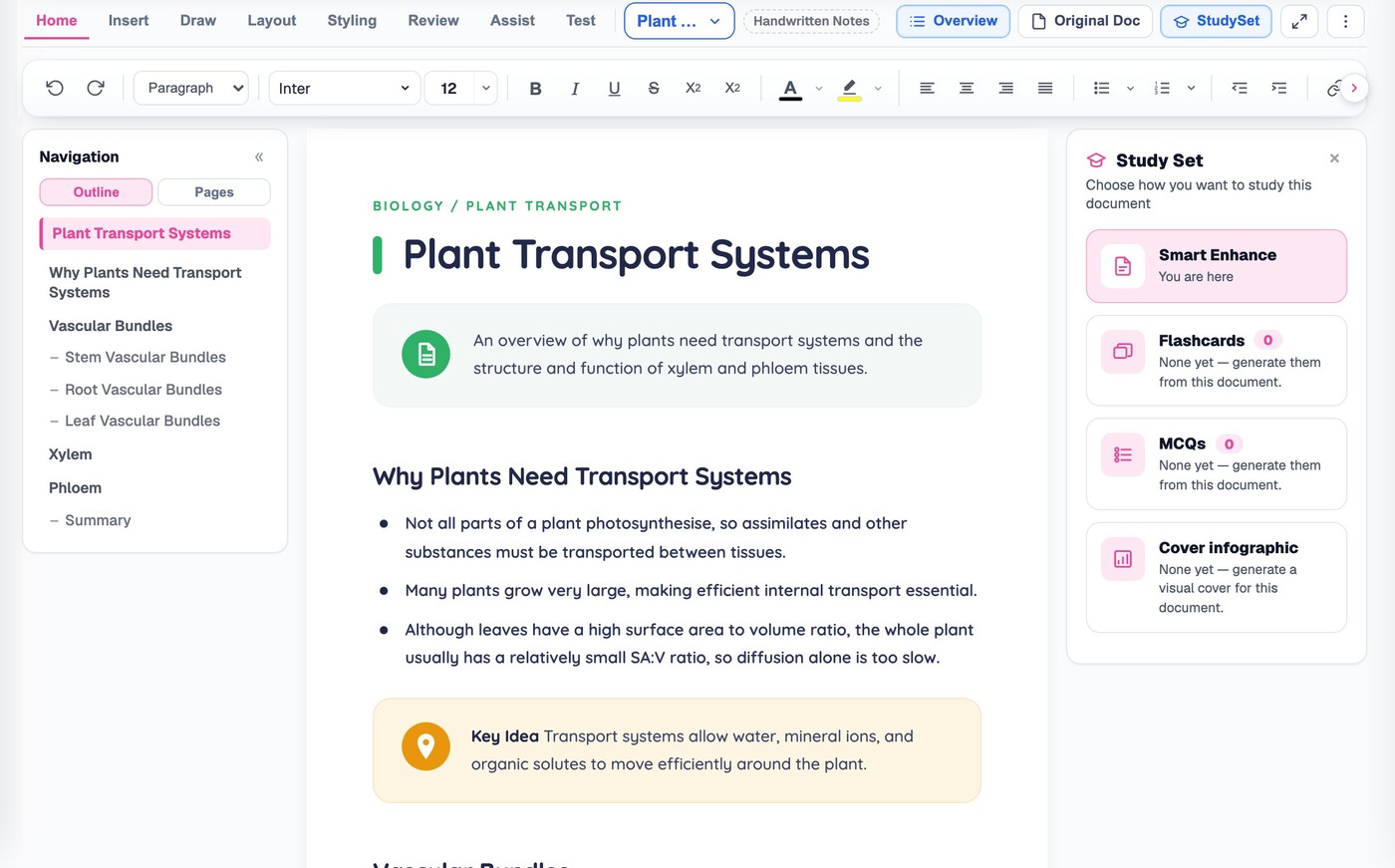
A full formatting toolbar
Fonts, headings, lists, alignment and colour, always one click away.
Six themes, or your own
Pick a finished look, or set your own page colour, background image and borders.
Word count and reading time
Always available from the Review tab, alongside spelling, grammar and fact-check tools.
See the same document, your way
Switch views from the Layout tab, or open a panel from the toolbar. Hover a card to see what each one gives you.

01
Pages
See your notes exactly as they will export, one A4 page at a time.

02
Continuous
Let your notes scroll as one long document, with no page breaks to think about.
03
Original Doc
Open your original upload beside the generated notes, so you can check any detail against the source.

04
Reading mode
Switch to a distraction-free read with a progress bar, then Mark As Read once you reach the end.
AI writing tools, right where you are reading
Select a sentence or a whole paragraph and the Assist tab offers four tools, each with its own options.
Example selection · Study Doc
Mitochondria produce ATP through aerobic respiration, which makes them the main energy source for the cell.
Explain
- Explain simply — a plain-language version.
- In depth — the fuller picture.
- Step by step — broken into stages.
- With example — a worked example.
Improve
- Polish writing — tidies grammar and flow.
- Add explanation — expands a short passage.
- Shorten — trims it down.
- Rephrase — says it a different way.
Remember
- Generate mnemonic
- Generate memory aid
- Generate analogy
- Generate story
Ask your tutor
- Opens the AI Tutor drawer with your selected text already attached, so you can ask a follow-up question about exactly that passage.
Checking tools, as deep as you need
Open the Review tab for three tools that check your document rather than rewrite it.
Word Count
Words, characters, paragraphs and an estimated reading time, calculated instantly from the document.
Spelling & Grammar
Spelling issues underlined in red, grammar in blue, with a side panel to accept or ignore each one, or Accept All / Ignore All.
Fact Check
Flags statements worth checking against your source material, with a reason and a suggested fix for each one.
Insert anything your notes need
The Insert tab is grouped by what each item does, so you can find things quickly.
Media
Bring in anything that is not text.
- Image
- Screenshot
- Video
- Audio
- Attachment
Tables
Lay out structured information.
- Table
- Chart
Visuals
Add shape and personality.
- Shape
- Emoji
Symbols
Write the notation your subject needs.
- Equation
- Symbol
Text elements
Call out the parts that matter.
- Text Box
- Callout
- Divider
As plain or as personal as you want
Pick a finished theme in one click, or build your own from the Styling tab.
Pick a theme
Choose it if
You want a finished look straight away.
You get
Six named themes — Default, Ocean, Forest, Sunset, Purple Haze and Monochrome.
See how it works ↓Set a page colour
Choose it if
You want a particular background without a full theme.
You get
Six page colours, or any custom colour.
See how it works ↓Add a background
Choose it if
You want texture behind the text.
You get
Upload your own background image, or choose a pattern.
See how it works ↓Save your own theme
Choose it if
You want your exact combination again next time.
You get
Colours, background and borders saved as a theme you can reapply.
See how it works ↓Everything in reach while you study
A home for all your Study Docs, and panels that keep the rest of your work one click away.
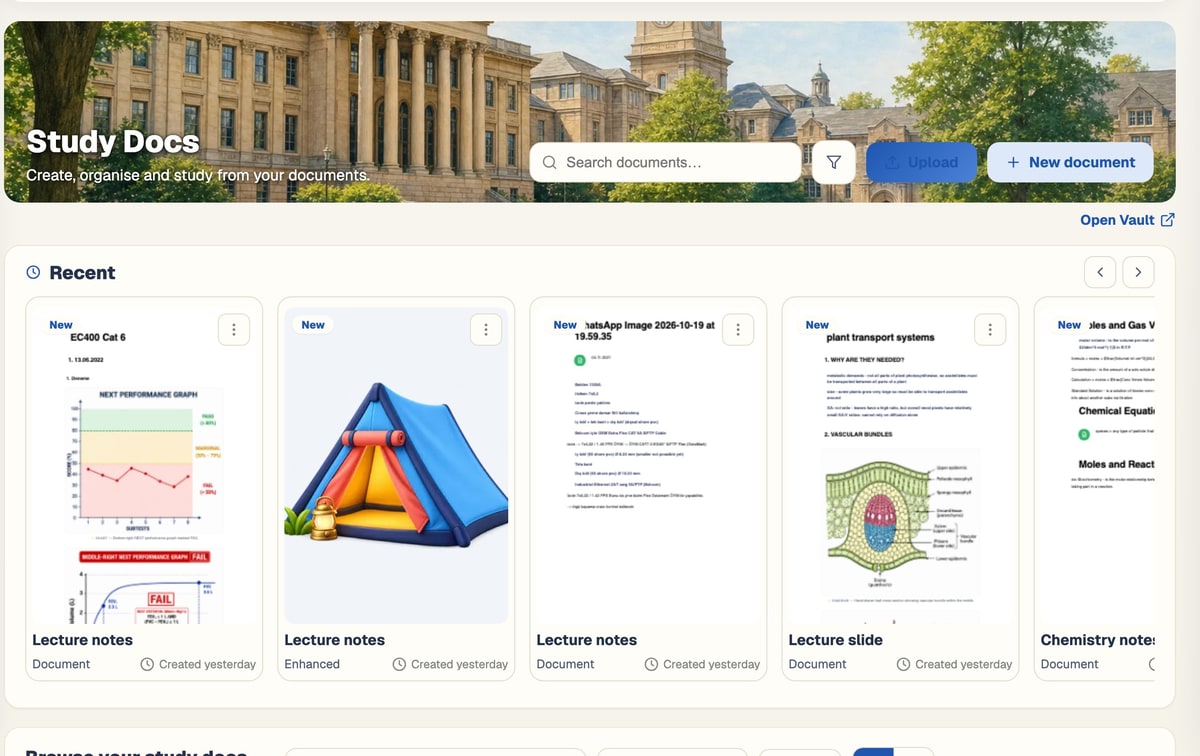
Your Study Docs, organised
Every Study Doc you have made, with its status and when you last opened it, plus a one-click New document.
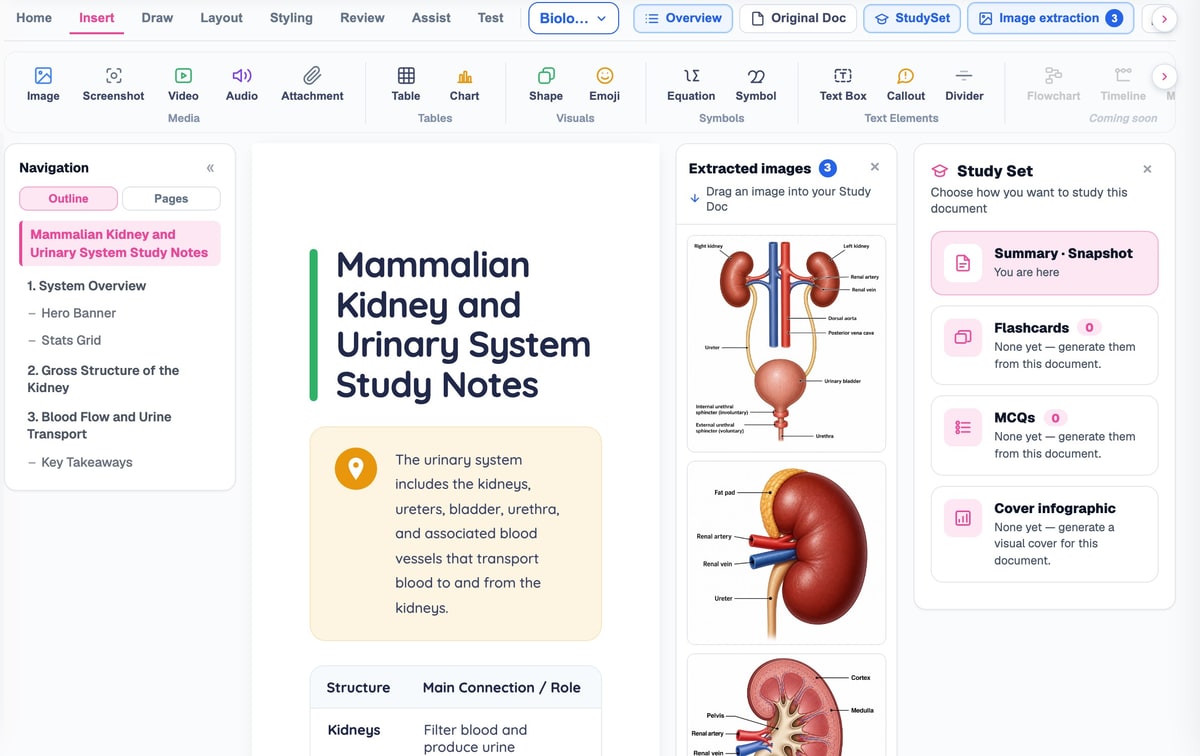
Insert anything
Images, tables, charts, shapes, equations and more, grouped by what they do.
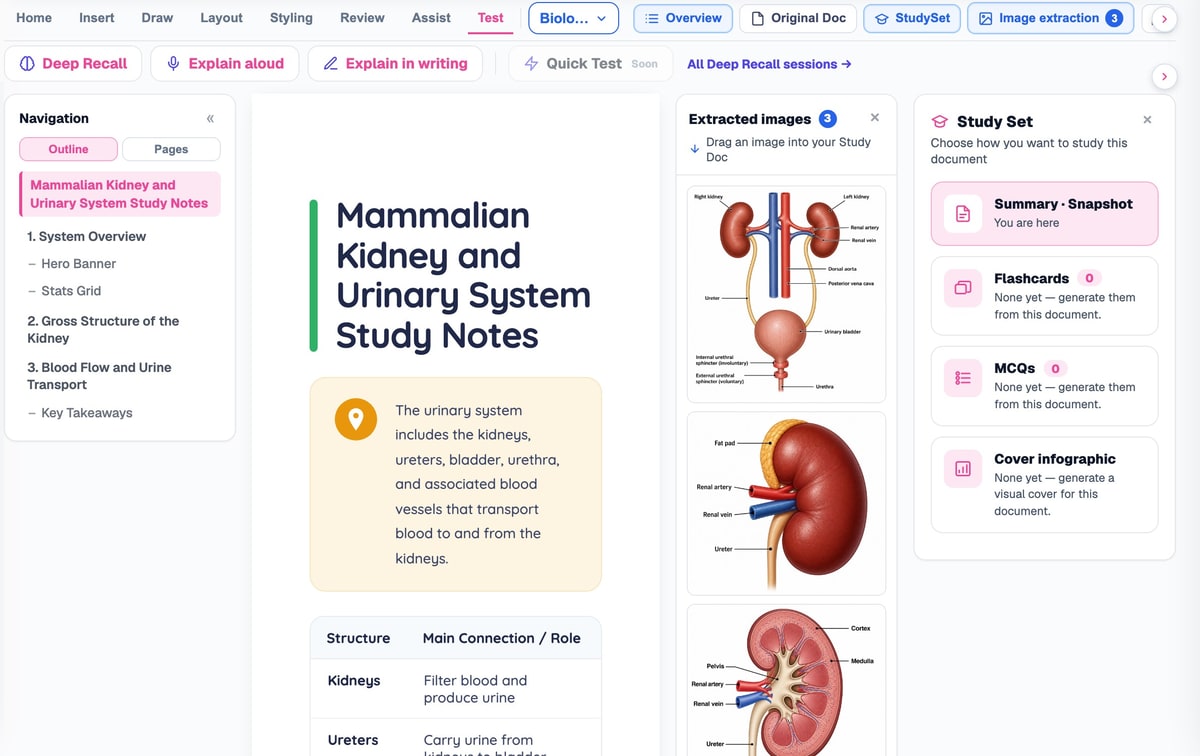
Teach it back
The Test tab opens Deep Recall: explain the document back out loud, or in writing, and BrightStudy grades how complete your explanation is.
Your Study Set, one click away
See the flashcards, MCQs and cover infographic made from this document, and jump straight to them.
Spaced repetition →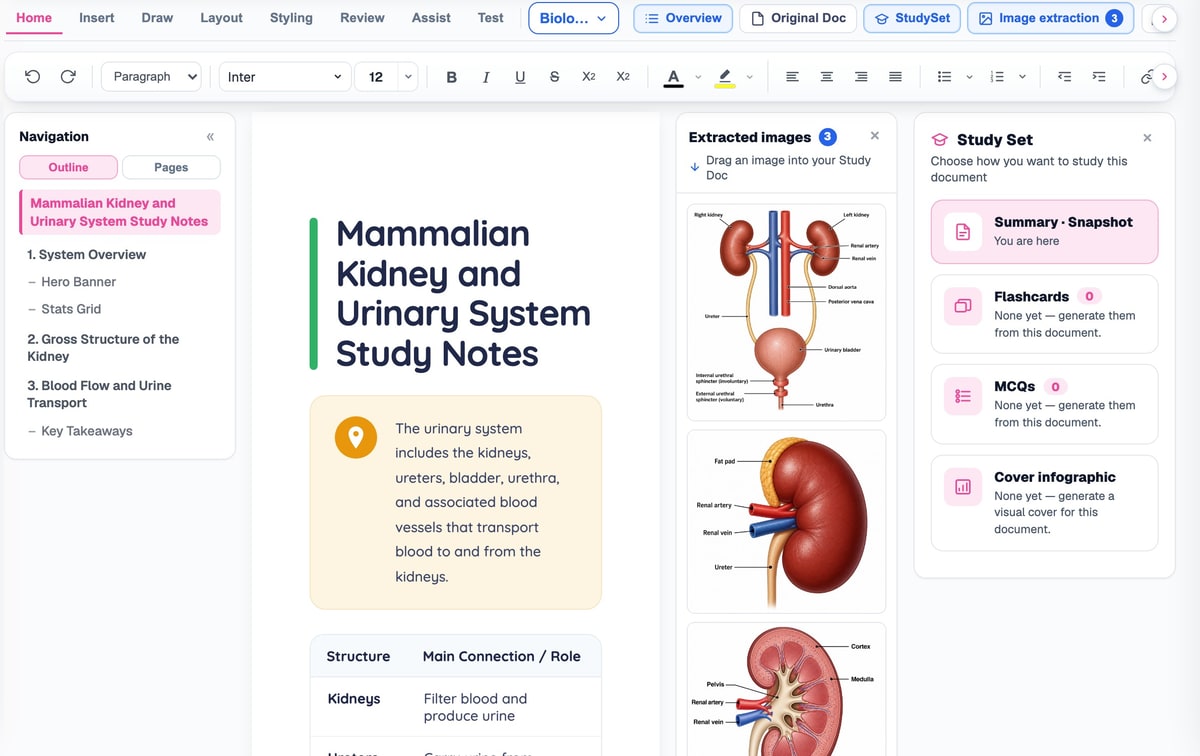
From upload to a document you can study from
A Study Doc is ready within a couple of minutes of uploading, already formatted.
- 1
Upload your notes
Slides, PDFs, handwritten pages, recordings or a YouTube lecture.
- 2
Tick what you want
A Study Doc comes with every upload; add flashcards, MCQs or an infographic too.
- 3
Your Study Doc is ready
Formatted, with any extracted figures already in place.
- 4
Make it yours
Switch view, pick a theme, and insert anything else you need.
- 5
Read, check and export
Reading mode, proofing tools and a one-click Word download.
A document that works as hard as you do
The ribbon, the Overview panel and the Study Set sit around the document itself, so writing, checking and revising never need a different screen.
Questions, answered
What a Study Doc is, and what the editor around it can do.
Try BrightStudy free and upload your first document, or email us at support@brightstudy.ai.
What is a Study Doc?
What is the difference between Pages and Continuous view?
Can I see my original file next to the generated notes?
What AI writing tools are there?
How does reading mode work?
What is Deep Recall?
What can I insert, and can I download my Study Doc?
Is the Study Doc editor free?
Explore the rest of BrightStudy
Move across the strips · tap one to explore
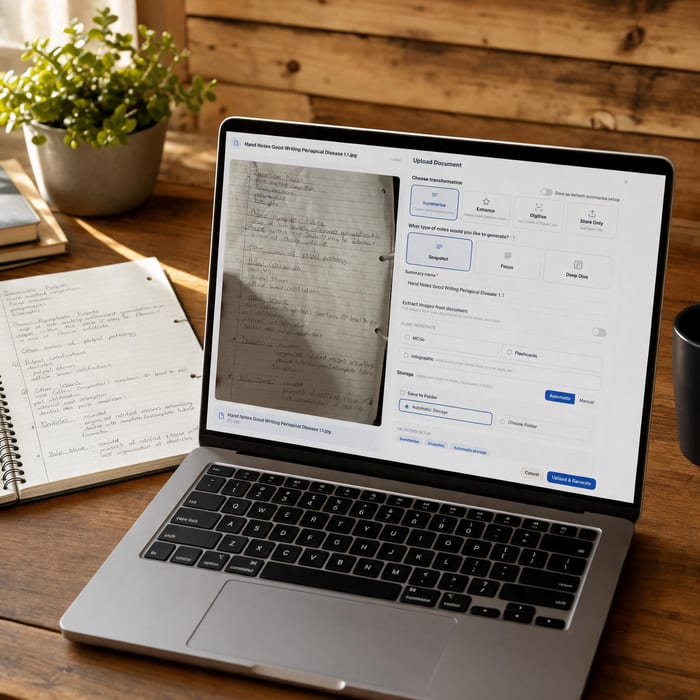 Document UploadsPDFs, slides and typed or handwritten notes.Learn more →
 YouTube LearningTurn video lessons into study materials.Learn more →
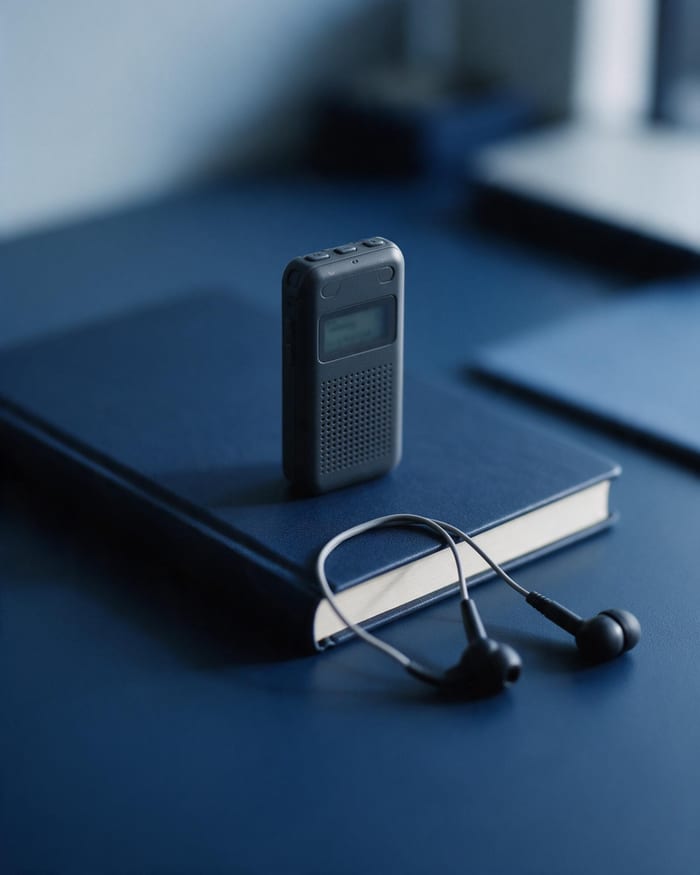 RecordingsRecord or upload audio for your learning.Learn more →
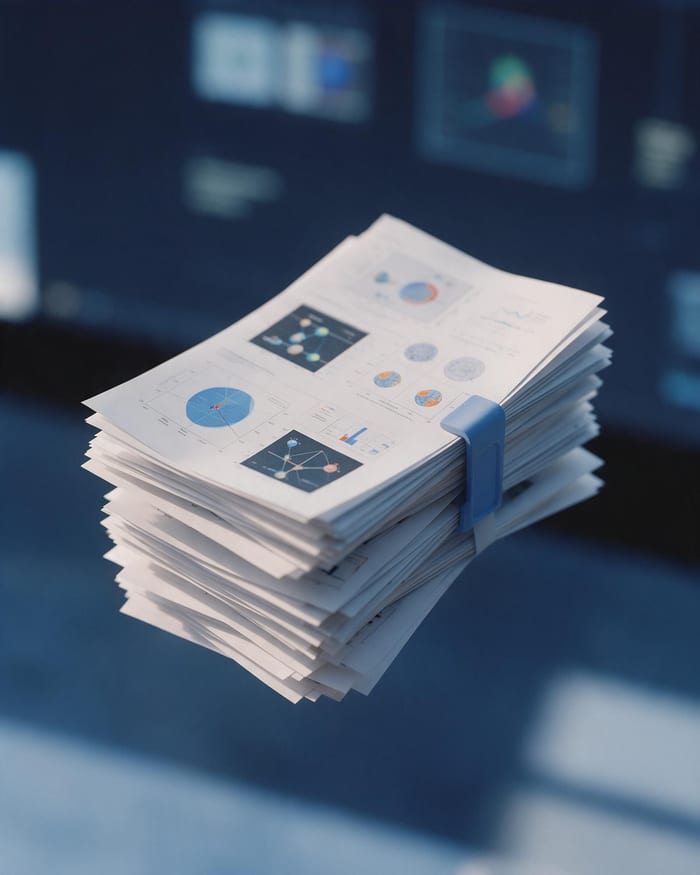 Image ExtractionBring the figures from your documents into your notes.Learn more →
 Manual CreationWrite your own notes, flashcards and MCQs.Learn more →
 FlashcardsActive recall with focused question-and-answer cards.Learn more →
 MCQsExam-style questions with answer explanations.Learn more →
Turn your notes into one finished document.
Upload once, then read, format, check and revise it all from a single Study Doc.
- Free plan to get started
- Study Docs, flashcards and MCQs
- Runs in your browser