Turn any recording into a Study Doc
Record a lecture as it happens, or upload audio and video you already have. BrightStudy transcribes it, then turns the transcript into notes, flashcards and MCQs, the same way as any other upload.
Capture any lecture
However the lecture reaches you
Start from the upload page, whether the recording already exists or is happening right now.
Upload existing audio or video
MP3, WAV, M4A, MP4, WEBM, OGG or AAC, up to 200 MB.
Record live in your browser
Press Record, Pause and Resume whenever you need to, then Finish recording.
Keep going through a drop-out
Lose your connection mid-recording and BrightStudy picks up as another part of the same recording, up to 20 parts.
Review before you generate
Edit or delete any part of the transcript before turning it into notes.
Kept in its own Vault centre
Every recording and its transcript collect in a Recordings storage centre.
Already recorded, or happening now
Hover a card to see what each way gives you.

01
Upload a file
Bring in a recording you already have, from a phone, a dictaphone or a lecture-capture system.

02
Record live
Start the in-page recorder and capture a lecture or seminar as it happens, right in your browser.
From audio to an editable transcript
A live preview while you talk, and a proper transcript once you finish.
Example recording
Lecture: renal physiology and fluid balance, 42 minutes
Live preview
- Where your browser supports it, a rough transcript scrolls past as you talk.
- This is only a preview — it is not the version used to generate your notes.
Transcribed by AI
- BrightStudy sends the audio to AI speech recognition, a speech-to-text model, for the transcript that actually gets used.
Edit before you generate
- Review the transcript for accuracy. You can edit or delete any part before generating your materials.
A recording that survives the real world
Lectures do not pause for a dead battery or a dropped connection, so BrightStudy is built to cope when they happen.
Keeps going through a reload
Close the tab or lose your connection mid-recording, and what follows becomes another part of the same recording, up to 20 parts.
Parts play as one track
In review, every part plays back as a single continuous recording, not separate clips.
One transcript, not several
The text from every part is joined into a single transcript to edit and generate from.
However you have the recording
Start from whichever is true for you right now.
Upload a file
Choose it if
You already have an audio or video recording.
You get
MP3, WAV, M4A, MP4, WEBM, OGG or AAC, up to 200 MB.
See how it works ↓Record live
Choose it if
A lecture or seminar is happening right now.
You get
Record straight in your browser, with Pause and Resume.
See how it works ↓Keep going after a drop-out
Choose it if
Your connection or battery lets you down mid-recording.
You get
BrightStudy treats what follows as another part of the same recording.
See how it works ↓Edit before you generate
Choose it if
A word was misheard, or you want to tidy the transcript first.
You get
A review screen where you can fix or delete any part before generating notes.
See how it works ↓Every recording, kept in its place
A storage centre of its own in the Vault, and a recorder that is always one click away.
A storage centre just for recordings
Every recording and its transcript, with filters for what has a transcript and what does not.
Vault →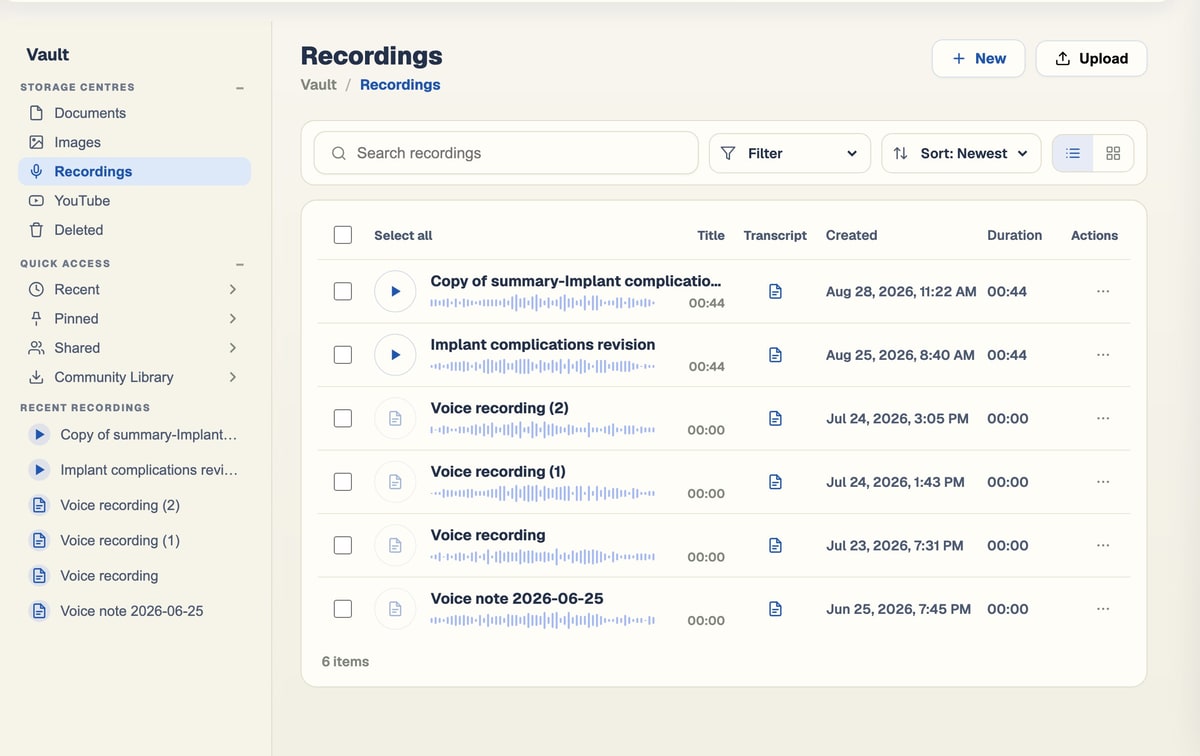
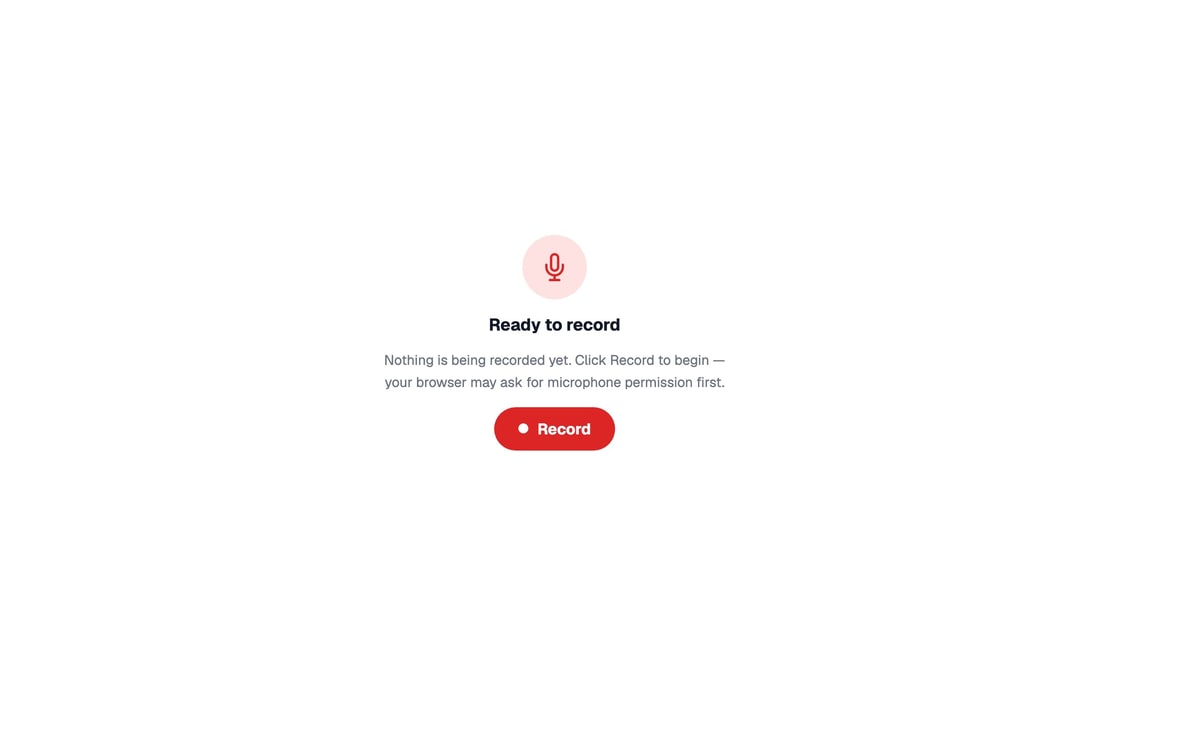
Record without leaving BrightStudy
Record, Pause, Resume and Finish recording, right in the browser.
Review before you generate
Edit or delete any part of the transcript before it becomes a Study Doc.

Flashcards and MCQs follow too
Tick them alongside your notes, generated from the same transcript.
Spaced repetition →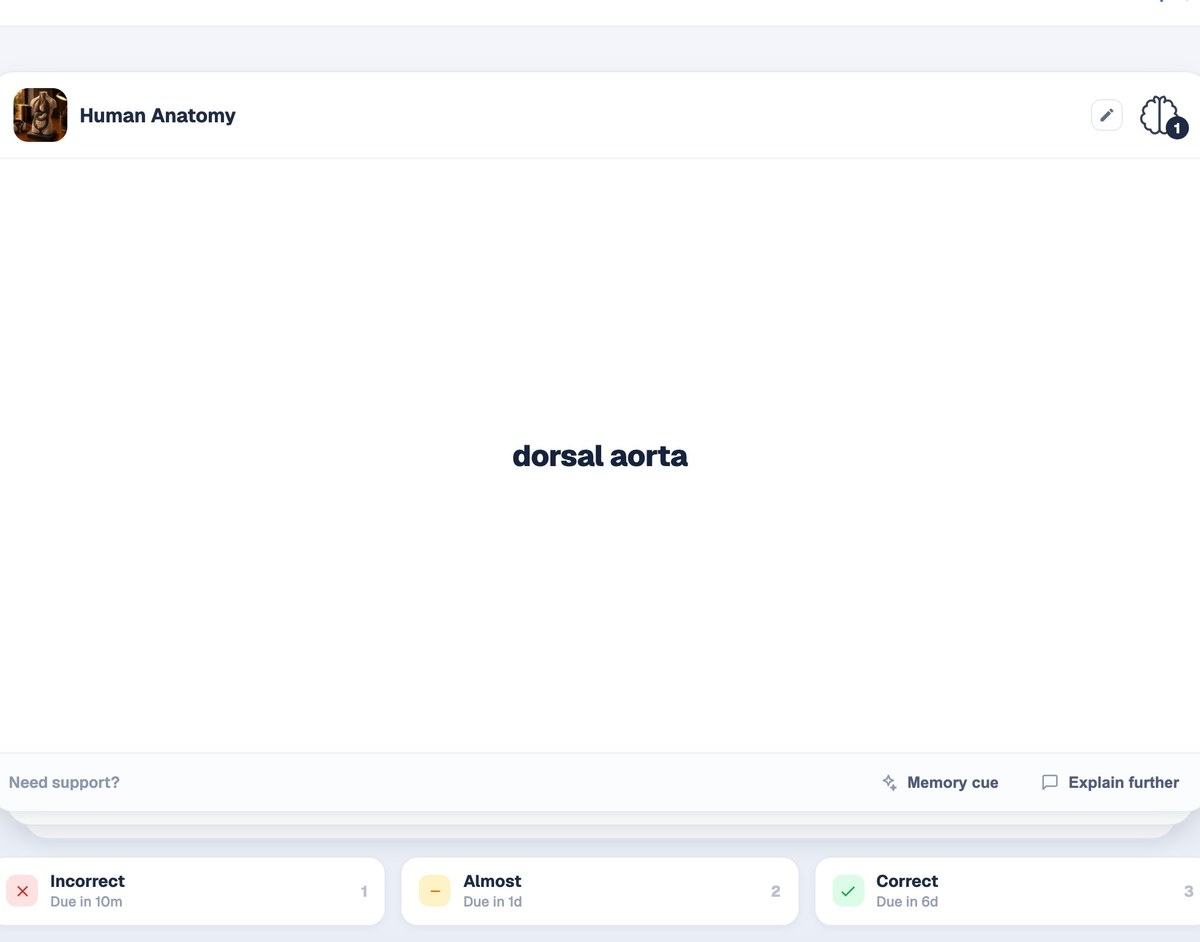
From a recording to a finished Study Doc
Most recordings are ready to review within a few minutes of finishing.
- 1
Record or upload
Capture a lecture live, or upload a recording you already have.
- 2
Transcribed automatically
AI speech recognition turns the audio into text.
- 3
Review the transcript
Fix or delete any part before generating anything.
- 4
Tick what you want
A Study Doc, flashcards or MCQs from the same recording.
- 5
Open your Study Doc
Formatted notes, with the recording and transcript kept together in the Vault.
Your recording, kept whole
Play the original audio, edit the transcript in place, download it, rename it, and see exactly which Study Doc it made — all from one page.
Questions, answered
What BrightStudy can record and transcribe, and what happens to the result.
Try BrightStudy free and upload your first document, or email us at support@brightstudy.ai.
What audio and video formats can I upload?
Can I record a lecture live in BrightStudy?
What happens if I lose my connection while recording?
How accurate is the transcript?
Can I edit the transcript before generating notes?
Where are my recordings kept afterwards?
Can I get flashcards and MCQs from a recording, not just notes?
Is recording and transcription free?
Explore the rest of BrightStudy
Move across the strips · tap one to explore
 Study DocsStructured notes you can read, edit and study from.Learn more →
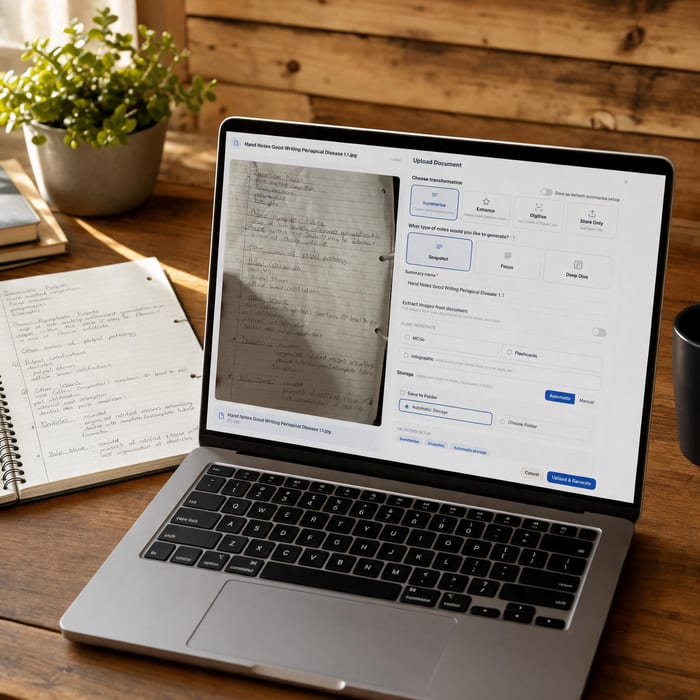 Document UploadsPDFs, slides and typed or handwritten notes.Learn more →
 YouTube LearningTurn video lessons into study materials.Learn more →
 Image ExtractionBring the figures from your documents into your notes.Learn more →
 Manual CreationWrite your own notes, flashcards and MCQs.Learn more →
 FlashcardsActive recall with focused question-and-answer cards.Learn more →
 MCQsExam-style questions with answer explanations.Learn more →
Never re-listen to a lecture again.
Record it once, or upload what you already have, and get notes you can actually revise from.
- Free plan to get started
- Study Docs, flashcards and MCQs
- Runs in your browser