Build your own Study Docs, decks and question sets
Not every document starts with an upload. Open a blank Study Doc, build a flashcard deck card by card, or write your own MCQs — with the same tagging, colour and organising tools as anything BrightStudy generates for you.

Start from a blank page
Everything you can build without an upload
Three empty starting points, each opening straight into its own editor.
A blank Study Doc
Opens straight into edit mode, ready to type, with the full ribbon of formatting and Insert tools.
A new deck
Name it, choose where it lives, and give it a colour.
A new MCQ set
Created empty, and opens straight in the MCQ editor.
Add Card or Add Question
One click adds the next card or question to whatever you are building.
Bulk tools as it grows
Tag, recolour, move or merge many cards at once.
Pick what you are starting
Each one opens in its own editor, built for what you are making.

01
A blank Study Doc
Start typing straight away, with the same ribbon, themes and Insert tools as any other Study Doc.

02
A new deck
Create an empty deck, name it, choose its location and give it a colour.

03
A new MCQ set
Create an empty set and start writing questions straight away.
Every field is yours to fill in
Add Card and Add Question open the same fields BrightStudy fills in when it writes them for you.
A flashcard
- Front and Back — the only two required fields.
- Explanation, Hint and Help me remember this, all optional.
- Accepted Answers / Synonyms, for typed-answer study.
- Tags, to find it later.
An MCQ
- A Question and Options A–D, required; Option E is optional.
- A Correct answer and one combined Explanation, in the quick Add Question form.
- In the full editor, each option gets its own Why this is correct or Why this is incorrect.
Bulk tools for a big deck
Select several cards at once with Bulk Edit, then apply a change to all of them together.
Select several cards
Turn on Bulk Edit and tick the cards you want to change.
Add tags to all of them
One tag list, added to every selected card’s existing tags, no duplicates.
Recolour or move them
Set a front, back or both-side colour, or move them to another deck, all in one action.
Your own words, or a ready-made question bank
Writing from scratch and importing ready-made questions both end up as ordinary decks and sets.
Write a flashcard
Choose it if
You know exactly what you want on it.
You get
Add Card, with every field optional except Front and Back.
See how it works ↓Write an MCQ
Choose it if
You have your own question ready.
You get
Add Question, with up to five options and an explanation for each.
See how it works ↓Import from the question bank
Choose it if
You want ready-made questions on a topic.
You get
New Set from Bank searches BrightStudy’s own curated questions by subject, topic and difficulty.
See how it works ↓Move or merge decks
Choose it if
Your decks need tidying up.
You get
Move cards to another deck, or merge one deck fully into another.
See how it works ↓Built for writing your own
The same editors BrightStudy opens after an upload, ready from an empty deck or set too.
The deck editor
Add Card with Front, Back and every optional field, right next to your card list.
Spaced repetition →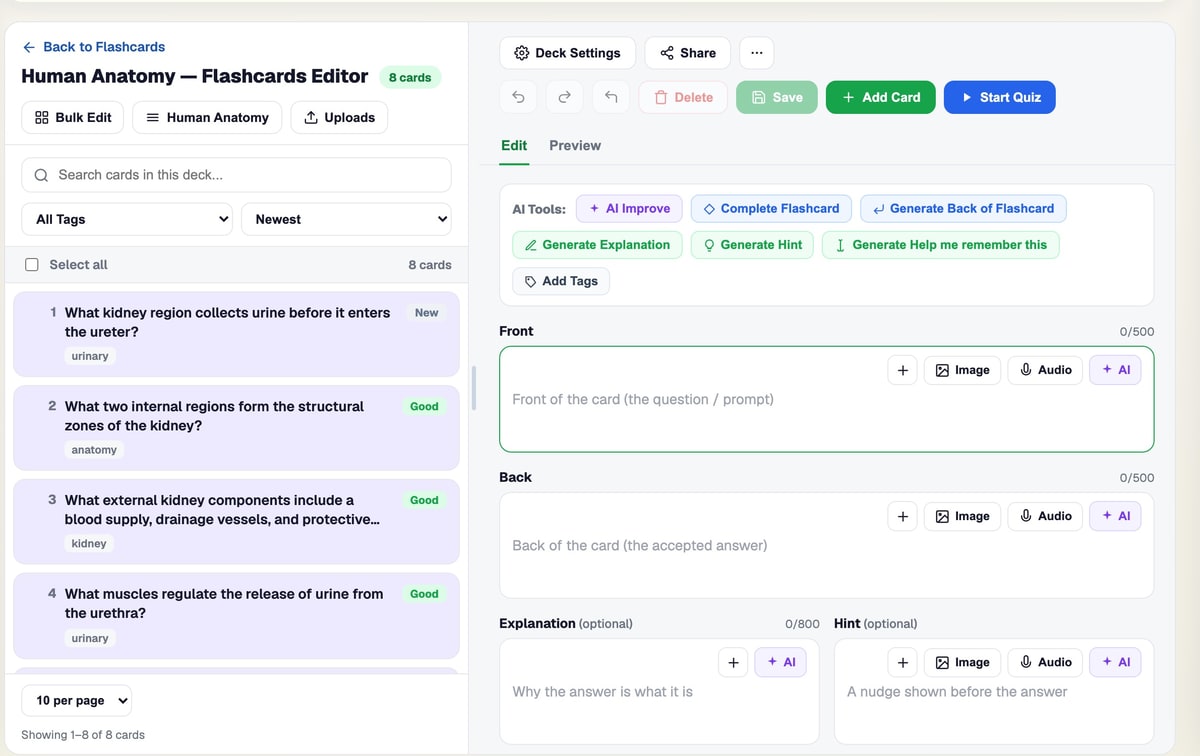
The MCQ editor
Add Question, with options, a correct answer and an explanation for each.
Exam practice →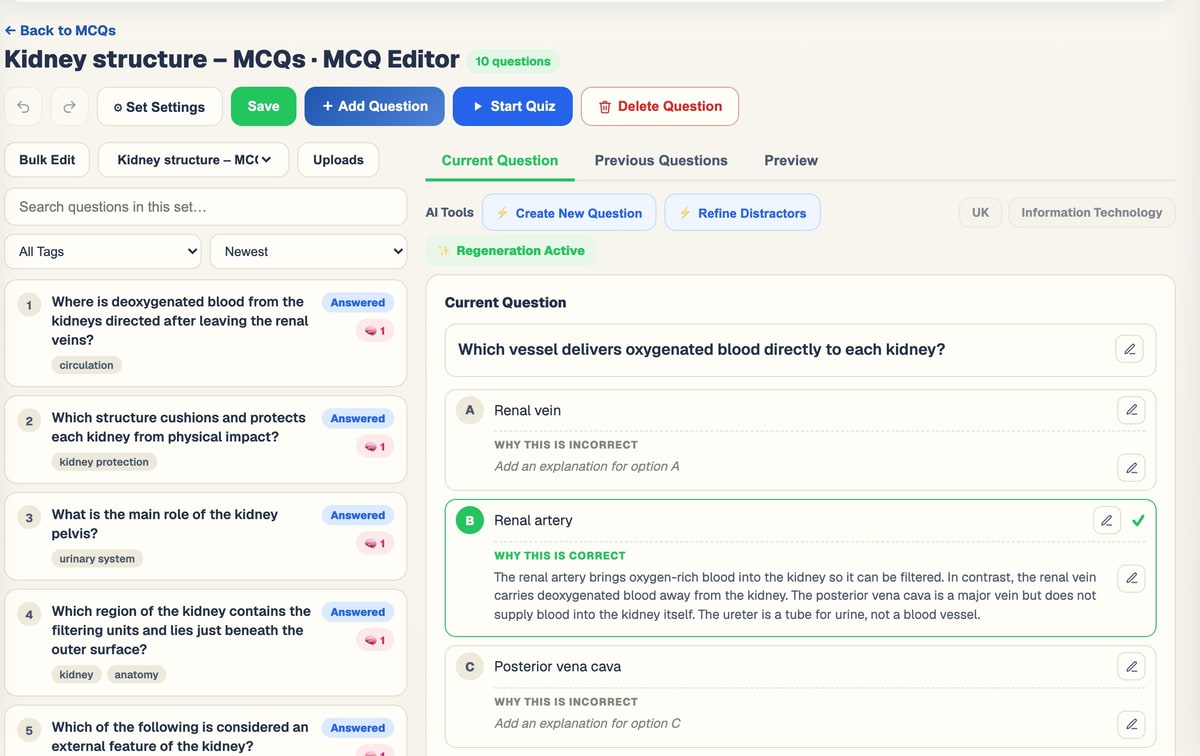
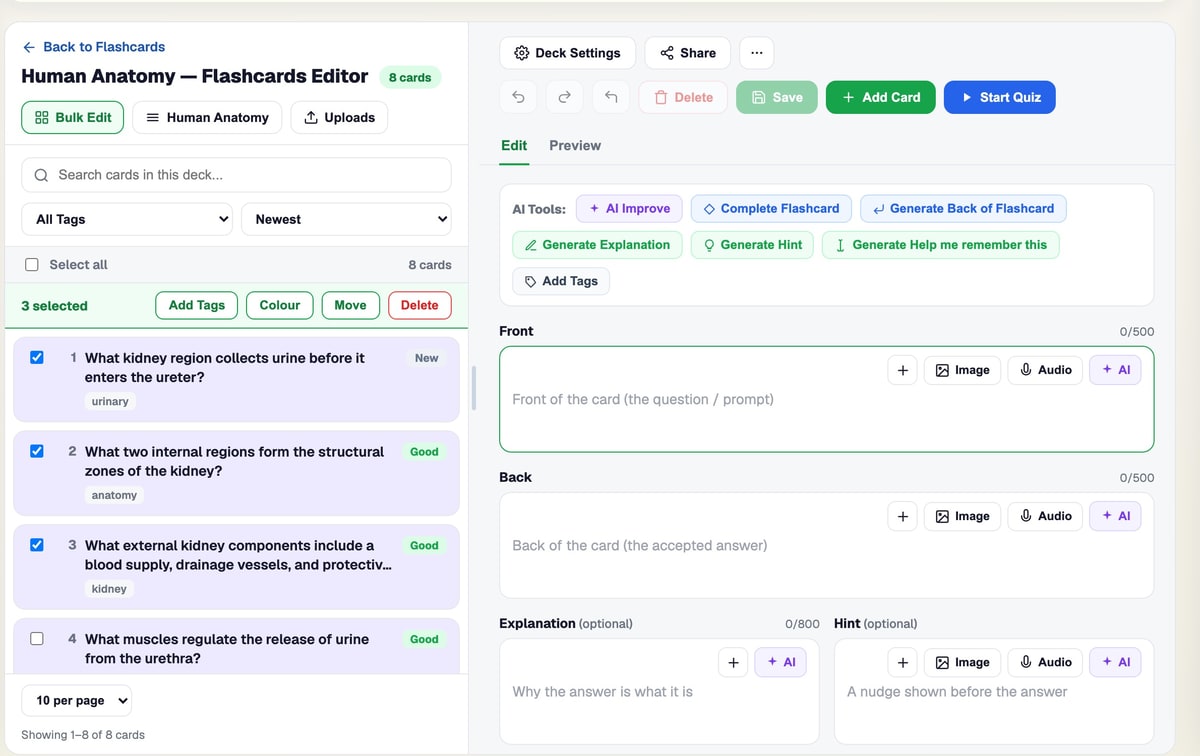
Bulk Edit
Select many cards, then tag, recolour or move them together.
New Set from Bank
Search BrightStudy’s own question bank by subject, topic and difficulty, then create a set from what you pick.

From nothing to a deck you study from
No upload required — just open an empty editor and start.
- 1
Start from nothing
New document, New Deck or New Set.
- 2
Write it yourself
Add Card or Add Question, one at a time.
- 3
Organise as it grows
Bulk tag, recolour, move or merge.
- 4
Or bring in ready-made questions
New Set from Bank, filtered by subject, topic and difficulty.
- 5
Study it like any other set
Spaced repetition and practice sessions work the same way.
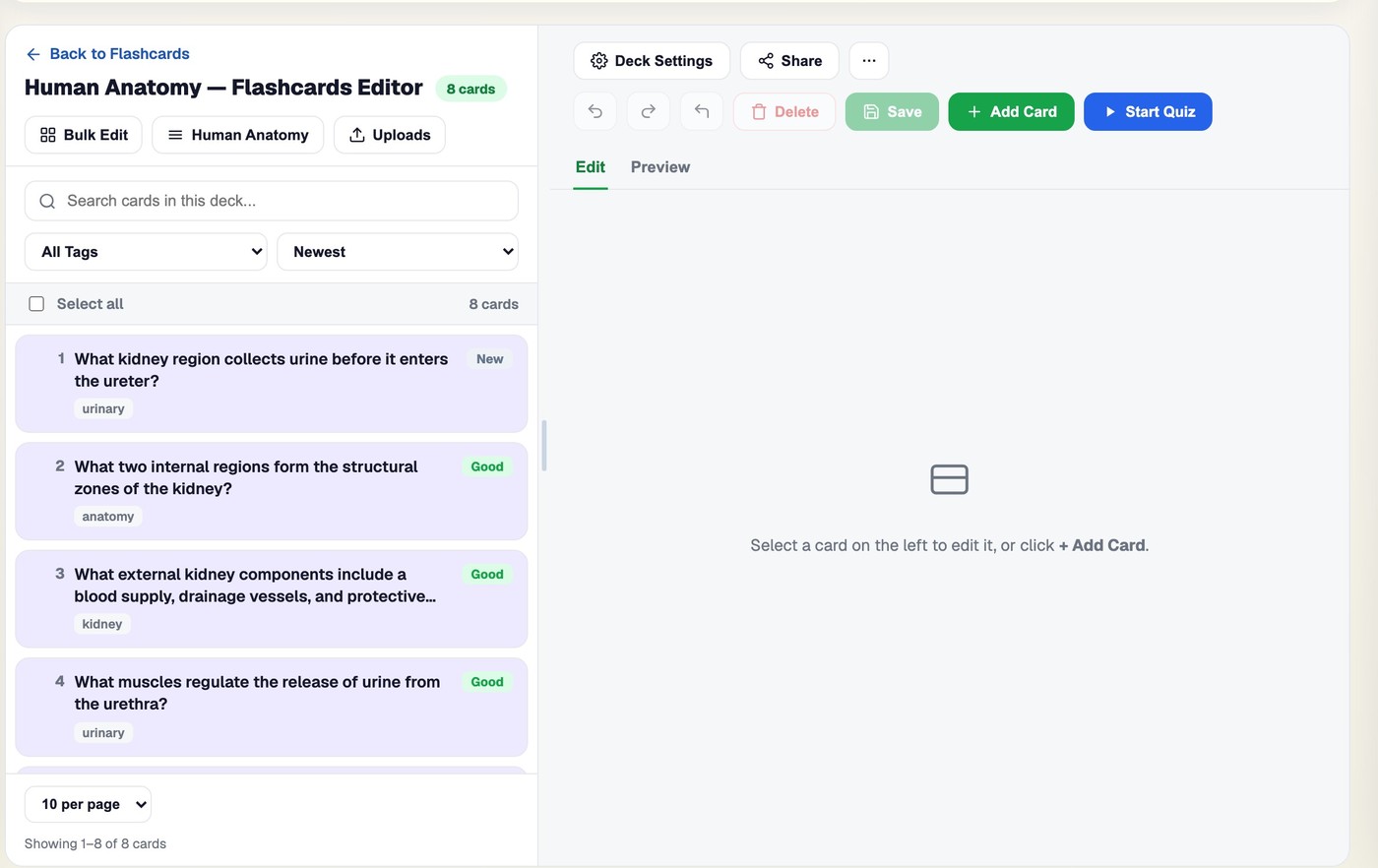
Card by card, on your own terms
Front, back and every optional field sit beside your full card list, so writing a deck by hand feels as quick as editing one BrightStudy made for you.
Questions, answered
Building your own Study Docs, decks and question sets without an upload.
Try BrightStudy free and upload your first document, or email us at support@brightstudy.ai.
Can I create a flashcard or MCQ without uploading anything?
How do I start a blank Study Doc?
What can I set on a flashcard besides the front and back?
What does the MCQ editor let me write?
Can I tag or recolour many cards at once?
Can I move cards between decks, or merge two decks?
What is "New Set from Bank"?
Is manual creation free?
Explore the rest of BrightStudy
Move across the strips · tap one to explore
 Study DocsStructured notes you can read, edit and study from.Learn more →
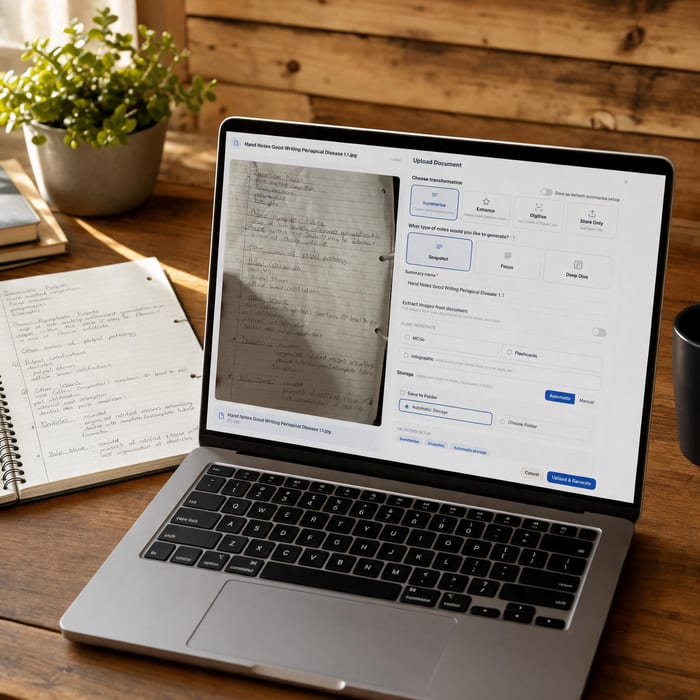 Document UploadsPDFs, slides and typed or handwritten notes.Learn more →
 YouTube LearningTurn video lessons into study materials.Learn more →
 RecordingsRecord or upload audio for your learning.Learn more →
 Image ExtractionBring the figures from your documents into your notes.Learn more →
 FlashcardsActive recall with focused question-and-answer cards.Learn more →
 MCQsExam-style questions with answer explanations.Learn more →
Write it yourself, or bring it in.
Start from a blank page, or pull ready-made questions from BrightStudy’s own question bank.
- Free plan to get started
- Study Docs, flashcards and MCQs
- Runs in your browser